
Staging Environments 101: Never Test Updates on a Live Site Again
 Denny G.3 min read
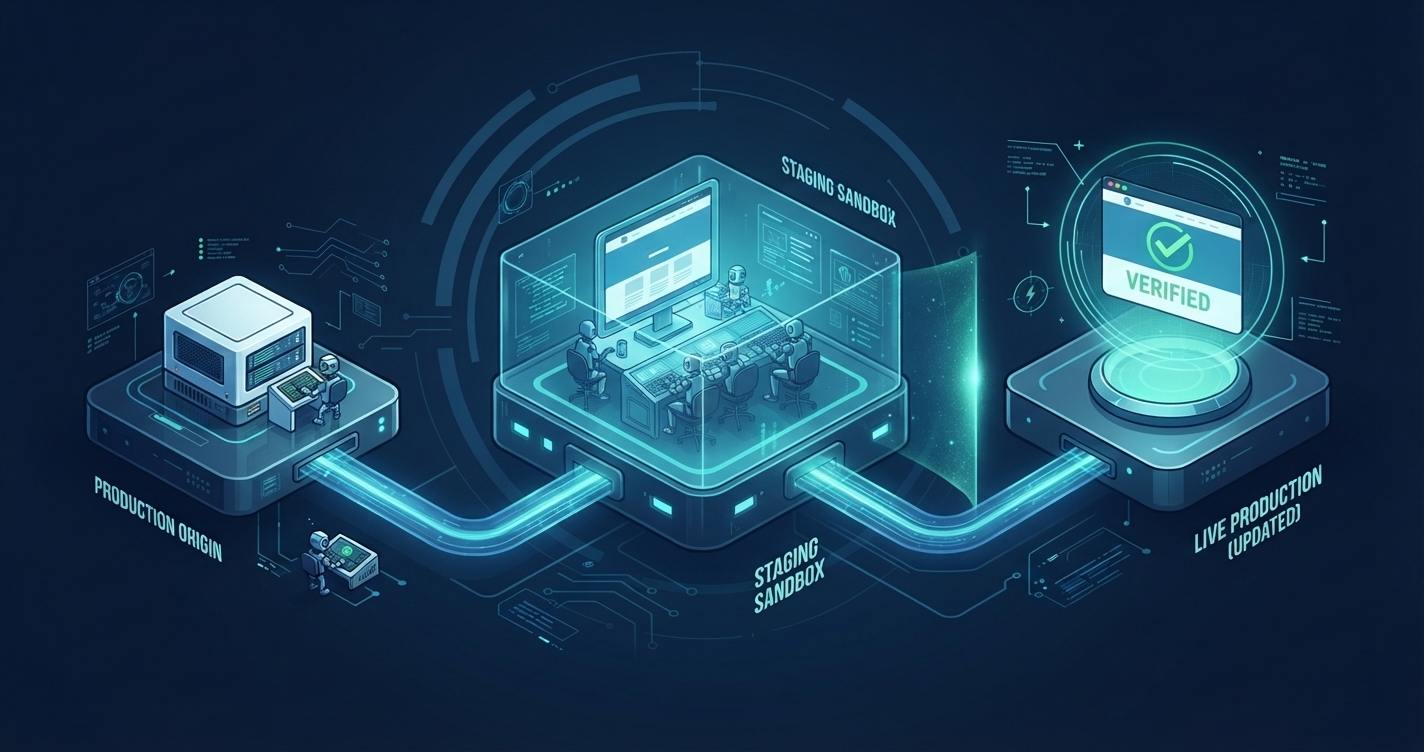
We have all been there: you log into your WordPress dashboard, see a notification badge showing six pending plugin updates and a core version bump, and click "Update All" directly on your live website. Seconds later, your checkout page throws a fatal PHP error, your CSS layout collapses, or you are staring at the dreaded White Screen of Death.
Updating plugins, themes, or PHP versions directly on a live production website is one of the highest-risk habits in web management. Yet many site owners still skip testing because they assume setting up a test environment requires complex local Docker containers, manual database exports, and tedious DNS reconfigurations.
Modern managed hosting solves this entirely with one-click staging environments. Let’s explore how staging works, why it protects your revenue and SEO, and the exact workflow for safe WordPress updates.
1. What Is a WordPress Staging Environment?
A staging environment is an exact, private clone of your live (production) website hosted on an isolated subdomain or temporary URL (e.g., staging-yoursite.onestopwp.cloud). It duplicates your entire WordPress filesystem, active theme, plugins, and MySQL database into a completely separate sandbox.
+--------------------------------------------------------------------+
|                PRODUCTION VS. STAGING ISOLATION                    |
+--------------------------------------------------------------------+
|  Production (Live)   --> Public-facing site indexed by Google and  |
|                          serving real customers/traffic.           |
|                                                                    |
|  Staging (Sandbox)   --> Private clone with    |
|                          search engine indexing disabled (noindex) |
|                          for zero-risk testing and development.    |
+--------------------------------------------------------------------+
Because the staging instance runs in its own isolated container with a separate database, anything you break, delete, or misconfigure in staging has zero impact on your live visitors.
2. Why Updating Directly on Production Is Dangerous
Even reputable, well-maintained plugins can trigger unexpected conflicts when updated simultaneously or paired with a new WordPress core release:
- CSS & Layout Regressions: Page builders, custom child themes, and third-party add-ons frequently clash after major updates, breaking mobile responsiveness or shifting interactive elements.
- PHP Version Incompatibilities: Upgrading from PHP 8.2 to PHP 8.3 or 8.4 can expose deprecated functions in older plugins, causing fatal runtime errors.
- Checkout & Form Breakages: On WooCommerce or lead-generation sites, a broken JavaScript bundle might not crash the homepage, but it can silently block customers from completing payments-costing you revenue before you even notice.
- SEO & Uptime Penalties: If Googlebot crawls your site while it is displaying a
500 Internal Server Erroror broken layout, search rankings and user trust take an immediate hit.
3. The 4-Step Safe Update Workflow
Using a one-click staging workflow turns stressful maintenance into a predictable, zero-downtime routine:
- Clone Live to Staging: From your hosting control panel, trigger a fresh sync from Production to Staging. This ensures you are testing updates against your exact current database state and active plugin stack.
- Apply Updates & Run Visual Checks: Log into your staging WP Admin and run your core, theme, and plugin updates. Test critical user journeys: submit contact forms, test WooCommerce cart/checkout flows, and inspect mobile layouts.
- Verify Performance & Caching: Clear your staging cache and verify that frontend assets load cleanly without console errors or layout shifts.
- Push Staging to Live: Once everything passes inspection, push your tested changes back to Production.
Effortless One-Click Staging with OneStopWP
At OneStopWP, safe deployment workflows are built directly into your dashboard. Powered by modern architecture and isolated containerized infrastructure, our managed hosting gives you:
- Instant One-Click Staging: Spin up an isolated clone of any WordPress instance in seconds, complete with automatic
noindexprotection so test pages never leak into Google search results. - Safe Cache Testing with WPCacheOn: Test minification, asset deferral, and Redis Object Caching adjustments safely inside staging using our proprietary WPCacheOn plugin (also available on WordPress.org) before deploying optimizations live.
👉 Ready to eliminate update anxiety for good? Explore OneStopWP Managed Hosting plans today.
See our plans and grab your discount while promotions last.
See plansKeep reading
All posts →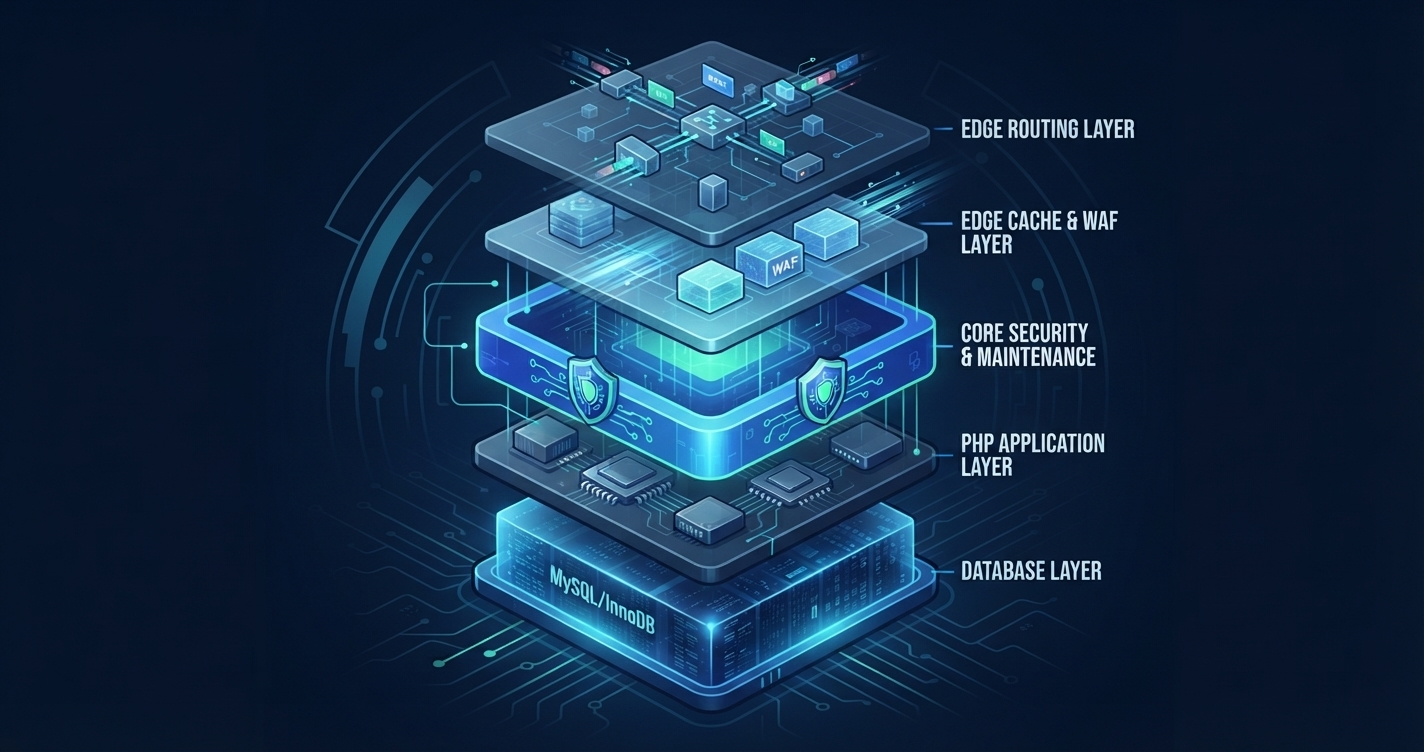 WordPress Hosting & OptimizationFrom 7.0 to 7.1.5: A Roundup of WordPress Core Maintenance and Minor ReleasesOlivia H.Date: Nov 18, 2026
 WordPress Hosting & OptimizationOneStopWP Optimizer: Free Security Checks and One-Click Fixes for Every OneStopWP Hosted SiteDenny G.Date: Nov 9, 2026
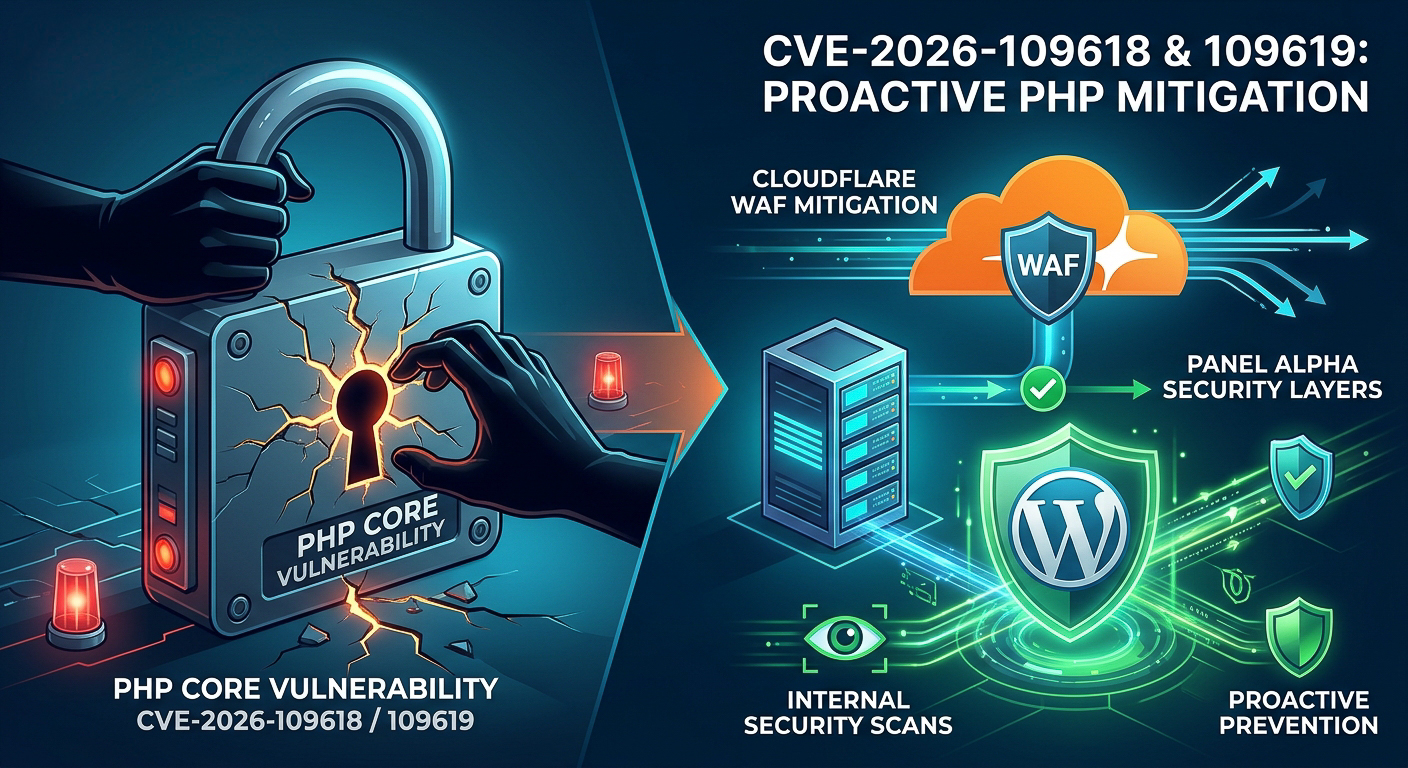 WordPress Hosting & OptimizationCritical PHP Vulnerabilities (CVE-2026-109618 & CVE-2026-109619): Our Proactive Security ResponseOlivia H.Date: Oct 21, 2026
Stay up to date
Get WordPress hosting tips, product updates and resources straight to your inbox.